
Microsoft released Exchange 2013 Preview earlier this week, along with Microsoft Office 2013, Microsoft SharePoint 2013 Preview, and Microsoft Lync 2013 Preview. Check out the following resources:
- Overivew
http://aka.ms/ex2013preview - Download Exchange 2013 Preview
http://aka.ms/getex2013preview - Documentation
http://aka.ms/ex2013previewdocs
Note, this is a preview version, not the final product release. As with any pre-release versions, you shouldn’t install it in a production environment.
One of the first questions many Exchange folks will have right of the bat is:
Where is the familiar Exchange Management Console (EMC), the GUI management tool introduced in Exchange Server 2007 and also found in Exchange Server 2010?
The answer: There isn’t! That’s right – Exchange 2013 Preview does not have the traditional, MMC-based management tool.
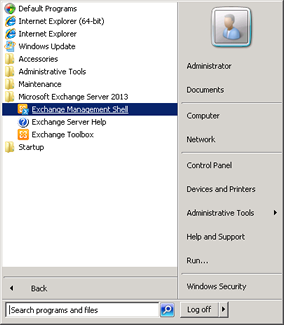
Figure 1: You won’t find the EMC in the Microsoft Exchange Server 2013 program group on your server’s Start menu
There’s the Exchange Management Shell (EMS). Does this mean you can only manage Exchange 2013 Preview using the Shell? No!
Enter the Exchange Administration Center (EAC), a new web-based unified console that allows you to manage Exchange Server 2013 (on-premises), Exchange Online Preview organizations and hybrid deployments. You don’t need to install any admin tools on your management computer/workstation to use the EAC. In fact, the EAC provides rich cross-browser and cross-platform support so you can use your browser of choice (see list of supported browsers/platforms).
You can access the EAC by going to http://<serverFQDN>/ecp. If you’ve been using Exchange 2010, the URL may sound familiar – it belongs to the Exchange Control Panel (ECP). In Exchange 2013 Preview, the same familiar URL lands you to the new web-based admin console that’s packed with functionality.
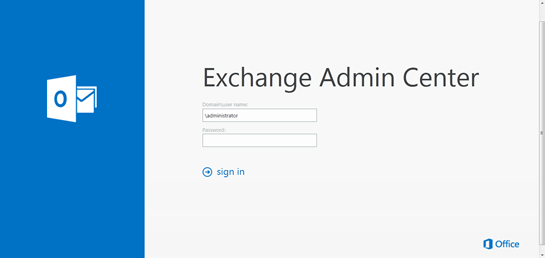
Figure 2: The Exchange Administration Center (EAC) login page at http://server.domain.com/ecp (see larger image)
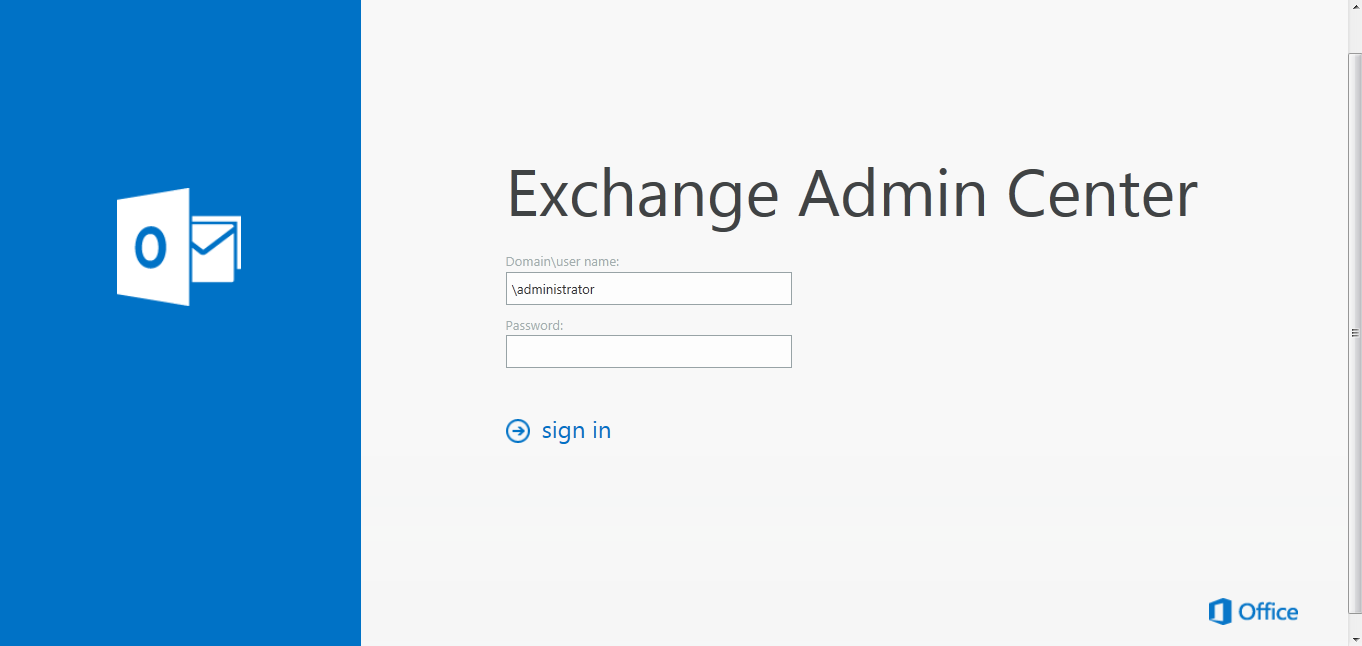
When you first log in to the EAC (if you’ve never logged into your mailbox), you’re presented with the familiar language/locale and timezone setting page.
If you’ve been using EMC in Exchange 2010 or Exchange 2007, you’ll be right at home with the EAC. Even if you’re not, it’s an easy web-based tool you can navigate through without much effort.
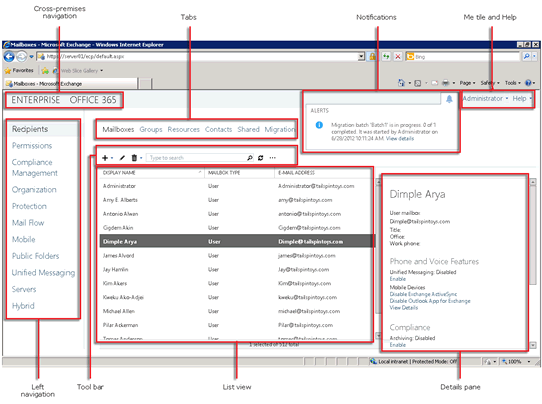
Figure 3: The Exchange Administration Center (EAC) in Exchange 2013 Preview (see larger image)
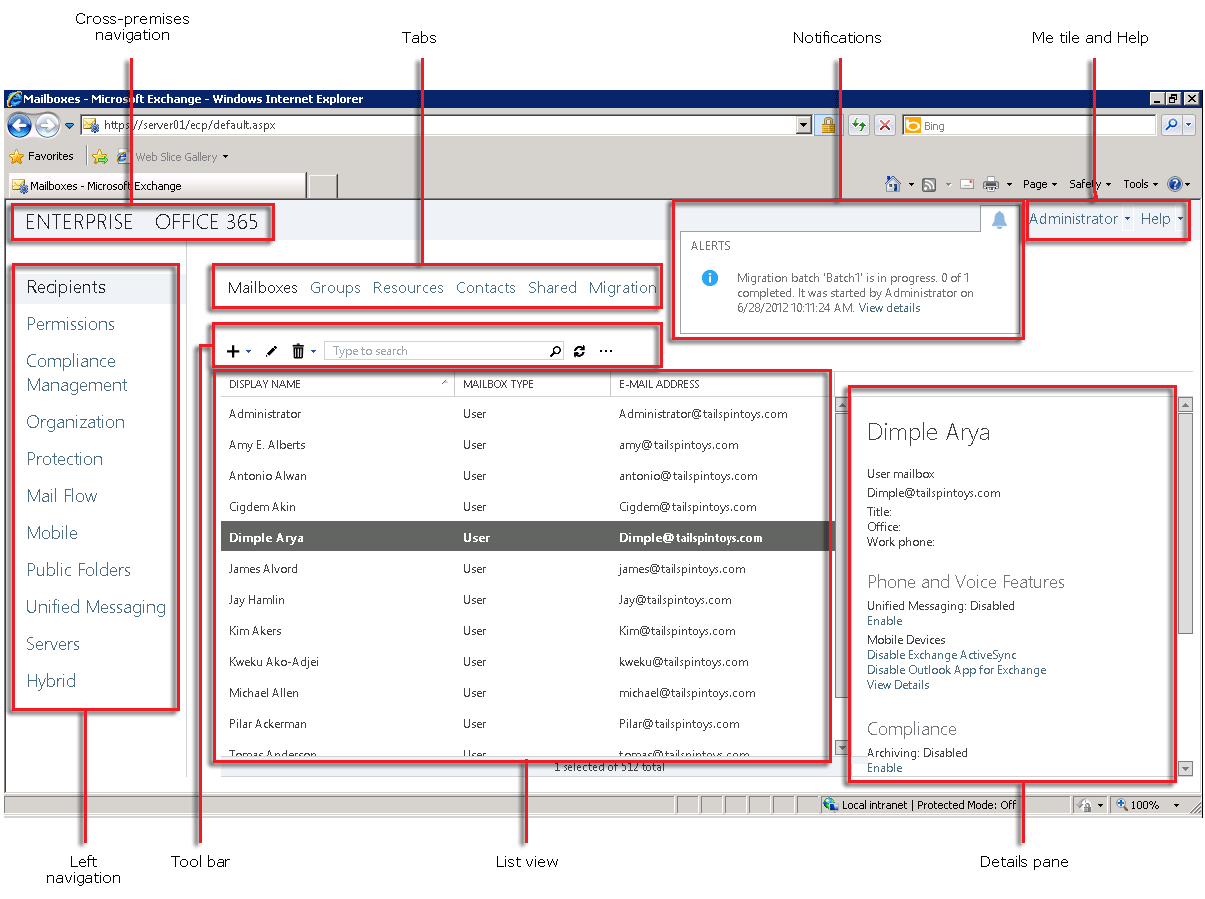
The familiar choices in navigation bar include:
| Left navigation | Tabs |
|---|---|
| Recipients | Mailboxes | Groups | Resources (resource mailboxes) | Contacts | Shared (mailboxes) | Migration |
| Permissions | Admin Roles | User Roles | and in this Preview build – OWA Policies. |
| Compliance Management | In-Place Discovery (Multi-Mailbox Search in Exchange 2010) & Hold (In-Place Hold, new functionality to replace Litigation Hold aka Legal Hold, which is deprecated but still available in this release) | Auditing (mailbox audit logging & admin audit logging reports) | Data Loss Prevention (new information protection feature) | Retention Policies | Retention Tags | Journaling |
| Organization | Sharing (Federation Trusts) | Apps (new feature) | Address Lists |
| Protection | Anti-Malware (new feature) |
| Mail Flow | Rules (transport rules) | Delivery Reports | Accepted Domains | Email Address Policies | Receive Connectors | Send Connectors |
| Mobile | Mobile Device Access (Allow/Block/Quarantine mobile devices) | Mobile Device Policies (ActiveSync Mailbox Policies) |
| Public Folders | Public Folders | Public Folder Mailboxes |
| Unified Messaging | UM Dial Plans | UM IP Gateways |
| Servers | Servers | Databases (from entire org) | Database Availability Groups | Virtual Directories (manage all CAS virtual directories, including AutoDiscover, EAS, ECP – used by EAC, EWS, OWA and PowerShell) | Certificates |
| Hybrid | Setup (Setup a Hybrid deployment with Office 365) |
So that’s a quick run down of the elements in the EAC in Exchange 2013 Preview. You can learn more in Exchange Administration Center in Exchange 2013 Preview documentation.
Remember, Exchange 2013 Preview, and therefore the EAC, is a work in progress. The navigation elements and their locations described above may go through changes by the time Exchange 2013 ships.
Have you checked out the EAC? What do you like about it? Things that should be changed?
Check out Managing The New Exchange, an in-depth look at the Exchange Administration Center on the Exchange team blog, and FAQ: Exchange Administration Center in Exchange 2013 Preview documentation.
Crap. Does this portend the end of the management console?
Love,
I truly abhor web-based administrative tools, thank heaven I use the shell more than the console.
Web-based consoles of yesteryears have left a lot to be desired, but as the web has grown up and matured, so have web-based consoles.
I like the fact that you don’t need to install anything, can manage Exchange from anywhere using (practically) any browser and OS. So in that sense, it’s more freedom. Also, given the world’s transitioning to the cloud, web-based consoles are a great fit. In Exchange 2013 Preview, you can use the same console to manage Exchange 2013 Preview on-premises, Exchange Online Preview (cloud-based), and Hybrid deployments (the middle ground) using the same tool.
However, as a huge PowerShell fan, I also LOVE the fact that you can manage Exchange on-prem AND Exchange Online using the cmdline – without having full-blown Exchange management tools installed on your computer.
Side note (and stating the obvious): What you’re seeing is Exchange 2013 Preview, not the final version.
Is the EAC web console faster than EMC?
Haven’t compared side-by-side, but the EAC does feel snappier and definitely loads faster.
Yes EMC is still loads faster.
Very much so Meg, I did a few test (mentioned in http://mailmaster.se/blog/?p=873) and I only got EAC as a winner.
Can’t say i’m taken with it, on first impressions. got it installed on 2012, and the whole thing feels slow and cumbersome, and pointlessly different – a lot of change for the sake of change. i can see i’m going to spend a lot of time telling admins how to do their job. if it gets more of them using powershell properly, though, it’s a win.
Bharat, always happy to read your blog. Wish you blogged more frequently, now that Exchange 2013 is out! :)
Thanks Paul!
thanks for posting this.
I think silverlight based admin console should have been better option if Microsoft wanted to go from EMC to a web based administration. i must agree with “Nick” it is slow and some time errors out but we must all remember this is not a final product.
Another concept which I didn’t really grasp was the change of Architecture again, it seems we are going backwards to Exchange 2003, two roles front end and back end.
Regards,
Surj
Adopting something like SilverLight (or Adobe Flash/AIR) may have posed an issue for the excellent cross-browser / cross-platform compatibility that both EAC (or its predecessor, ECP) & OWA have offered since Exchange 2010.
It would’ve required a browser plug-in to be installed, and the driver for web-based consoles is to not require installation of additional software.
Dear
i am getting unexpected error and can not see the EAC details for config
secondly IIS settings are critical can you pls send details for IIS configuration
i am using 12 server and 13 Exch
I will cross my fingers and hope someday, just maybe someday EAC would come out for Exchange 2010 in a future Service Pack. Small possibility but it is possible :)
We have a User Forest / Resource Forest environment. We want to install Exchange management tools on our User Forest 64 bit administration workstations but it is not possible. going web based would solve this.
Thanks for the article.
[…] 2013 At the time of writing, EAC, the new web-based admin console in Exchange 2013, does not allow you to select any OU-specific UPN […]
While I am working with Exchange 2013, I accedentily delete IIS default web site.
After that I couldn’t able to login to exchange administration center (EAC) or even exchange powershell
True – there’s no mgmt site to connect to. Which tool did you use to delete the default web site – IIS console? Perhaps there should be built-in protection for default web site on Exchange servers or a clearly worded confirmation prompt.
Or just a tool that can restore the site as quickly as it can.
Loved the 2003 system manager and tools like PFDAVadmin and Exmerge. LOATH 2010 scripting! I hope 2013 web based tools give you all the functionality and tools that 2003 gave you.
Well Mr. Suneja,
Quoting your lines “Web-based consoles of yesteryears have left a lot to be desired, but as the web has grown up and matured, so have web-based consoles.”
So, why Microsoft can not give exactly the same Exchange managenet consle as it is in 2007 and 2010 BUT instead of an application it will be web based ! the only difference will be, the web based console will have no right clieck and which is 100% fine because the third pane of the console has all the options what we get when we do a right click !
I would appricate, if I do see a reply from you.
Good Point Rodrix !
The console needs to evolve to meet different needs. Note, Outlook Web App, also a web-based app in Exchange, has right-click functionality, so I wouldn’t rule it out for EAC in the future. For now, the third pane provides the options you would’ve normally seen when using right-click in 2007/2010, as you’ve noted. Most customers would likely see efforts focused on more high priority functionality.
The Web Based ECP totally sucks. This needs to be addressed. We dont care about office365, what is M$ catering to such a small amount of users and screwing the rest?
What part of it sucks? Agreed, it may not offer complete feature parity with fat management clients such as EMC.
[…] […]
My God!
I tried the Exchange 2013 just now. It’s unbelievable it’s so slow with many errors.
The Windows Server 2012 IE 10 restarted many times in one hour but the server and Exchange 2013 were just now installed with no mailboxes!!! (Internet Explorer has stopped working many times…)
Sorry developers but this web based management console is a really bad conception and a really bad “product” with reduced functionality.
Unfortunatelly the news is true.
We have to wait a better product with a better and faster management console before doing an upgrade from Exchange 2010.
Sorry guys but this development direction is bad. We have to buy faster and much expensive servers with unuseable tools just because somebody found out this web based crazy conception. (Needed 8 GB memory??? What a hell!!! What’s this? Is it a NASA application to direct hundreds of space shuttles???)
The only “value” is we don’t have to install the management application. But who care with it?
We don’t want to manage the corporate Exchange from an other computer than our computer. If so, we can use RDP…
So then is more than enough to install that tools only once to our computers…
Ok, I know. You wanted to make a product for everybody like Office 365. But who can manage servers? The End Users? Of course, no! The admins. So believe me an admin can install a fast, useable management tool…
Developers, developers, developoers! I’m sure you want to create a valuable product
but please, please, please use your mind before you make such a weak thing like Exchange 2013 web based management.
We don’t mind if you make web based management tools but please make useable Windows or Silverlight based tools as well.
Thanks.
Completely agree. Exchange 2013 is a bad server product. No management console is silly and the Web based console is laughable. Command line still works, but what features are gained for all that is lost. Microsoft says:
1.)Touch optimization…wtf is that? I don’t need my server to be touch optimized.
2.) Sharepoint integration using Site mailboxes…yawn.
3.) Malware and anti-spam filters…still not up to par with competitive solutions.
There’s an alternative to EMC: it’s a 3rd-party tool called “Exchange Tasks 365”, developed by U-BTech Solutions. The tool supports both on-premise Exchange servers (2010/2013) and Office 365. It’s great for recipient management and offers advanced options like bulk operations.
Various licensing options are available, including a free trial (for everyone) and a free copy (for partners). Try it: http://www.u-btech.com/products/exchange-tasks-365.html
I just completed a new Exchange 2013 Test Server installation. I can’t find EMC and then read about EAC. But server does not allow me to open IE so that I can connect to EAC. It says, IE cannot be opened with default Admin Account. Do I need to create another account and make it admin and then login with that?
This has got to be one of the largest cluster F’s in MS history. Let’s all just throw in the towel and move over to office 365 in the cloud because that is obviously where they are trying to push us with this half ass update. I can’t manage my Exchange 2013 settings because dun dun dun, it kicks an error when specifying the release number. Why fix what isn’t broken? I had a feeling it was only going to get worse when they stripped AD integration out of exchange in 2010. This is just plain stupid. Web based control is a nice “feature” but making it mandatory is just plain idiotic!
I hope thes new version EAC 2013 isn’t going to rock the market as Exchange 2010 have emerged as the finest Exhcnage management console
So much hifty nifty in EAC not good display look is poor admin also not pretty
Amitabh
I HATE the web based console, in Exchange 2013. I’ve made repeated attempts to get familiar with it in the lab, and it has not grown on me, even after three years. We will be sticking with 2010 in our production environment.
Screw the cloud, and screw all those moronic “IT profits” who say the traditional IT model is doomed. These are the same guys who 15 years ago said we would all be using RDP terminals.
The EAC is painful, slow, and poorly laid out. Man do I wish the EMC still worked. At least it was easy to find what you were looking for.
[…] Bring back EMC on Exchange 2013: Dude, Where’s my Exchange Management Console (EMC)? […]
Can’t stand it.
EAC is slow to logon on to and then slow to actually do anything.
It’s like MS has thought about everything that was useful and then got rid of it. Not ~SBS, no GUI’s, Powershell that half the time doesn’t even understand a cmdlet despite it asking you to run it.
The cloud might be ok if the infrastructure was in place but where I am there are loads of rural businesses with under 1mb broadband speeds, Office 365 would just kill it.
Although locally-installed MMC-based management consoles such as EMC seem and probably are a little faster, I haven’t found the EAC to be noticeably slower in comparison. On the positive side, it’s much easier to update web-based consoles so you’re getting newer features at a faster clip. And it’s cross-platform – you can manage it from almost any browser on an platform.
Agree on the bandwidth issue – cloud services obviously won’t work for users in bandwidth-constrained locales. Hopefully it’ll get better in due course, but until then on-premises remains a good option.
Great, another Giant leap back to the DOS age. After reviewing the test install of Exchange 2013 I will stay with Exchange 2010. I see no reason for me or my small business clients to move to the new version. None of them have trained IT staff and retraining the “power users” to command line for the “one-zy” “two-zy” changes they make is not an option. The Web based client is so vastly different from the EMC that it would be difficult as well. Not everyone is a big business and needs to do everything by script. I just don’t get it. All thought I think it is fine that you can do all this stuff in power shell, it was the GUI that made this software so user friendly and easy to deploy and manage. Why couldn’t the web interface resembled the EMC? At least that way the users could find everything. The software being friendly and easy was a big selling point vs the command line with all the different syntax and not being able to see the results (visual feedback) when you make a change.
If it all has to be command line then I guess I might as well use the free Linux stuff.
using the EAC, how do I check the transport logs, or any logs to see why exchange is not sending out email or receiving emails? It was easy with exchange 2007, why does MS have to complicate things? I don’t have the time to learn powershell, can that be accessed using the EAC, as i have searched everywhere, but can’t find it.
Transport logs can be found under mail flow > Delivery Reports
“Web-based consoles of yesteryears have left a lot to be desired, but as the web has grown up and matured, so have web-based consoles.”
A mature turd is still a turd.
Wow. EAC is definitely a downgrade to EMC. I’m actually wondering why we have to leave Exchange 2010. I’m of going scratching 2016 and just go with 2010 for awhile.
Whats missing in EAC?
1. Can’t assign a group full permissions to a mailbox.
2. Can’t assign an external contact to groups. You have to go into each group and assign the contact one by one.
3. Can’t preview members of a dynamic group.
4. You can move the databases or logs.
So far its looking bad. These work on EMS. Just get used to typing alot.
►► Unhappy Customer ◄◄
Things I do not like about EAC for Exchange 2013:
1.) It is web-based (sub-par experience)
2.) I cannot log into it to even set it up (IIS issues
3.) I cannot log into it even though it’s out-of-the-box (New OS, New Exchange Server)
It doesn’t even work out of the box. Come on.
While the jury is still divided on the experience web-based admin tools provide – some like the “speed” of legacy admin tools such as EMC, most love the cross-browser compatibility and hands-off (nothing to be installed) convenience and ability to manage Exchange from any device and from anywhere.
By default, there’s no configuration required to access EAC internally using the server’s FQDN. See Exchange admin center in Exchange 2016.
If IIS is having issues, you have a bigger problem than simply EAC not working, given the close integration of Exchange with IIS. You’d want to fix IIS. Call Support if you need to.
[…] http://exchangepedia.com/2012/07/exchange-2013-dude-wheres-my-exchange-management-console-emc.html […]
[…] 9. Exchange 2013: Dude, Where’s my … – Exchangepedia […]