
 Exchangepedia Blog is read by visitors from all 50 US States and 150 countries world-wide
Like many of my posts, this one also starts with "By default,... ". Like many folks, I'm always curious about the defaults used for almost everything in Exchange/SMTP (and IIS, Windows, AD et al), and at times intrigued by the choices made.
One of my pet peeves has been about how installing Exchange changes the maximum number of recipients on the SMTP virtual server from the 100 set by SMTP service sans Exchange, to a mind-boggling 64,000 recipients after our favorite mail server modifies the SMTP stack. There's plenty of fodder there for yet another blog post— a quite lengthy one if I have the time. :)
This one's about logging SMTP protocol activity, which isn't enabled by default. Yes, SMTP logging is disabled by default! Unfortunately, many administrators only find out about this *after* they start troubleshooting an SMTP-related issue. Of course, it's too late by then!
You can enable SMTP logging (also referred to as "protocol logging" or "SMTP protocol logging" by some) from SMTP Virtual Server | properties | General tab.
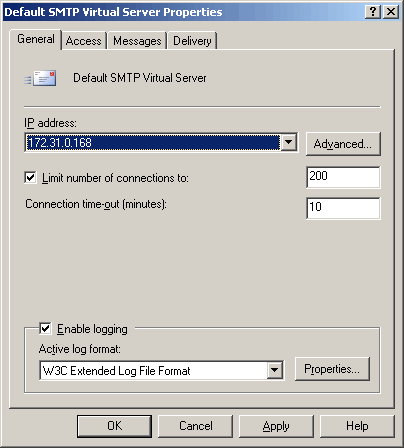
Figure 1: Enabling SMTP logging in SMTP Virtual Server properties | General tab
SMTP Log Formats
With the decision to enable SMTP logging made, you are faced with a choice of logging formats. Exchange 2003/2000 rely on IIS to provide protocol support. It's IIS doing the logging. It should be no surprise that the log file formats available and fields logged are designed for web servers:
At this point, it should be clear which log file format is a good fit for logging SMTP activity. It's the only format that is, well, extended! (The rest only log certain fixed fields). It lets you select the fields that will help you troubleshoot SMTP. If you chose the W3C Extended Log File Format, pat yourself on the back for making a great choice!
SMTP Log Fields
You can select the fields the W3C format will log. By default it logs only 4 fields: Time (no date), c-ip (Client IP Address), cs-method (Method):, cs-uri-stem (Uri Stem) (which doesn't log anything , afaik), and sc-status (Protocol Status).
The above fields provide very basic and at times completely inadequate information for troubleshooting, particularly in higher volume environments.
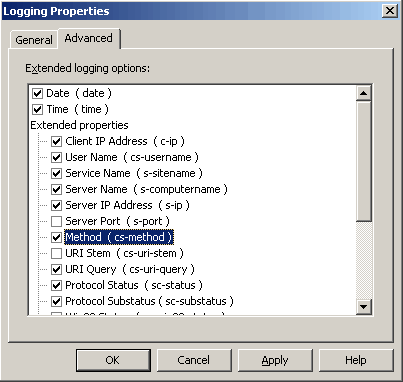
Figure 2: When enabling SMTP logging, make sure the fields useful for troubleshooting are actually being logged.
The following fields should be logged:
Rolling over logs on a daily basis seems like a good choice. Smaller or low-volume environments can roll over weekly, monthly, or when the file reaches a certain size. The unlimited file size option means the log will never roll over - not recommended.
The option to use local time for file naming and rollover exists - the timestamps in the logs will always use UTC (if you've gone through the whole Daylight Savings Time issue earlier this year you probably understand very clearly why using UTC timestams in log files makes sense :).
Location of SMTP logs: By default, SMTP logs are located in %systemroot%\system32\LogFiles, in folders created for each SMTP virtual server instance - e.g. SmtpSvc1 for the default/first SMTP virtual server instance.
Starting logging is the first step, and brings with it some additional decisions to make and procedures to follow. It's a good idea to ask yourself why you're logging the information, how long does it remain valuable for that purpose, when will you remove old log files (and if any compliance policies in your organization require you to archive logs for a particular period of time).
One of my pet peeves has been about how installing Exchange changes the maximum number of recipients on the SMTP virtual server from the 100 set by SMTP service sans Exchange, to a mind-boggling 64,000 recipients after our favorite mail server modifies the SMTP stack. There's plenty of fodder there for yet another blog post— a quite lengthy one if I have the time. :)
This one's about logging SMTP protocol activity, which isn't enabled by default. Yes, SMTP logging is disabled by default! Unfortunately, many administrators only find out about this *after* they start troubleshooting an SMTP-related issue. Of course, it's too late by then!
You can enable SMTP logging (also referred to as "protocol logging" or "SMTP protocol logging" by some) from SMTP Virtual Server | properties | General tab.
Figure 1: Enabling SMTP logging in SMTP Virtual Server properties | General tab
SMTP Log Formats
With the decision to enable SMTP logging made, you are faced with a choice of logging formats. Exchange 2003/2000 rely on IIS to provide protocol support. It's IIS doing the logging. It should be no surprise that the log file formats available and fields logged are designed for web servers:
- W3C Extended log file format: The default logging format for SMTP and other IIS services. It includes some fields that are only relevant to Web and FTP services. This is the only format that's customizable - it allows you to select the fields you want to log.
- NCSA Common log file format: Based on the NCSA httpd, widely accepted as a standard amongst web server vendors at some point, this format only logs basic access information. You cannot select the fields to log.
- Microsoft IIS log format: Another fixed field format, it does log more information that the NCSA Common format. The time logged is local time.
- ODBC Logging: Used to log to an ODBC-compliant database. Although it's possible to log directly to a database, rarely have I come across a deployment where this was required or used. Notably, it degrades performance.
At this point, it should be clear which log file format is a good fit for logging SMTP activity. It's the only format that is, well, extended! (The rest only log certain fixed fields). It lets you select the fields that will help you troubleshoot SMTP. If you chose the W3C Extended Log File Format, pat yourself on the back for making a great choice!
SMTP Log Fields
You can select the fields the W3C format will log. By default it logs only 4 fields: Time (no date), c-ip (Client IP Address), cs-method (Method):, cs-uri-stem (Uri Stem) (which doesn't log anything , afaik), and sc-status (Protocol Status).
The above fields provide very basic and at times completely inadequate information for troubleshooting, particularly in higher volume environments.
Figure 2: When enabling SMTP logging, make sure the fields useful for troubleshooting are actually being logged.
The following fields should be logged:
- Date
- Time
- c-ip (Client IP Address)
- cs-username (User Name): The fqdn provided by sending server on HELO
- s-sitename: SMTP virtual server instance name (e.g. SMTPSVC2)
- s-computername (Server Name): Name of server, useful if aggregating logs from multiple servers into a monitoring/logging database
- s-ip (Server IP Address): This is useful if the Exchange server has multiple IP addresses, or when aggregating logs from multiple servers to a database or spreadsheet
- cs-method (Method): SMTP command e.g. HELO, MAIL, RCPT, DATA, QUIT
- cs-uri-query (URI Query): The command parameter (like +from:[email protected]. This logs the from and to addresses, sending server fqdn given at HELO, and Message ID. (Note: Nothing between the DATA and end of data sequence is logged)
- sc-status (Protocol Status): SMTP protocol response like 220, 250, 500,
et al - sc-win32-status (Win32 Status): a numerical value, 0 if successful.
- sc-bytes (Bytes Sent): if you really need this info - handy at times for troubleshooting
- cs-bytes (Bytes Received): if you really need this info - handy at times for troubleshooting
- time-taken (Time Taken): if you really need this info, handy at times for troubleshooting performance
- s-port (Server Port): This is always logged as 0 afaik, even if the SMTP Virtual Server is listening on a port other than 25 .
Optional: These are occasionally useful when troubleshooting performance problems
Rolling over logs on a daily basis seems like a good choice. Smaller or low-volume environments can roll over weekly, monthly, or when the file reaches a certain size. The unlimited file size option means the log will never roll over - not recommended.
The option to use local time for file naming and rollover exists - the timestamps in the logs will always use UTC (if you've gone through the whole Daylight Savings Time issue earlier this year you probably understand very clearly why using UTC timestams in log files makes sense :).
Location of SMTP logs: By default, SMTP logs are located in %systemroot%\system32\LogFiles, in folders created for each SMTP virtual server instance - e.g. SmtpSvc1 for the default/first SMTP virtual server instance.
Starting logging is the first step, and brings with it some additional decisions to make and procedures to follow. It's a good idea to ask yourself why you're logging the information, how long does it remain valuable for that purpose, when will you remove old log files (and if any compliance policies in your organization require you to archive logs for a particular period of time).
Labels: Administration, SMTP




6 Comments:
Thanks, that was helpful!
+brooke
Seattle, WA
how can I delete messages if the cs-username is not a FQDN?
Super useful ...Thanx!!!
Hi all, I deploying Real Time Block List on Exchange 2003 from Zen.spamhaus.org. And I want to monitor which email match with blacklist of SpamHaus from logs on Exchange.
But when I saw log as intruct above. I do not see anything relate to Spamhaus.
May you please advice me?
Thanks
August 4, 2009 11:59 PM
Most useful article - much appreciated!
Has anyone figured out why the s-port only reports 0? I'm trying to get statistics on which ports are most used to connect to our SMTP virtual server, and that's the only piece of data that these SMTP logs does NOT report on.
Thanks!
@Nguyễn: Exchange 2003 drops the connection for IPs listed on RBLs/IP Block Lists. It's not logged in SMTP log.
In Exchange 2007, the connection isn't dropped, and the antispam agent log has the details. See Exchange Server 2007: How are RBLs performing?
Post a Comment
Links to this post:
Create a Link
<< Home