
Follow-up to previous post “HOW TO: Assign SendAs right using Exchange shell” – the ability to assign SendAs and ReceiveAs permissions is preserved in Active Directory Users & Computers (ADUC), but the ability to grant Full Mailbox Access permission isn’t available. Full Mailbox Access is a mailbox permission (without getting into a debate about what’s a permission and what’s a right, the term is used interchangeably here).
In Exchange Server 2003/2000, mailbox permissions can be controlled from the Exchange Advanced tab | Mailbox Rights, as seen in the following screenshot.
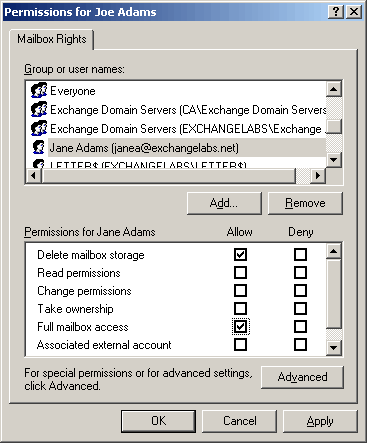
Figure 1: In Exchange Server 2003/2000, mailbox permissions can be managed from ADUC
Since Exchange Server 2007 does not use ADUC for recipient management, this can’t be done using ADUC. The shell is your friend when it comes to assigning Full Mailbox Access and other mailbox permissions. You can use the Add-MailboxPermission command from the shell to assign it.
In the following example, we assign Full Mailbox Access permission on Joe Adams’ mailbox to another user (janea):
Add-MailboxPermission “Joe Adams” -AccessRights FullAccess -user “janea”
Besides FullAccess, the following mailbox permissions can be granted using Add-MailboxPermission:
- SendAs
- ExternalAccount
- DeleteItem
- ReadPermission
- ChangePermission
- ChangeOwner
Viewing permissions using Get-MailboxPermission
To view permissions on a mailbox, use the Get-MailboxPermission command:
Get-MailboxPermission “Joe Adams”
To view explicitly assigned permissions (i.e. permissions that are not inherited):
Get-MailboxPermission “Joe Adams” | where {$_.IsInherited -eq $false}
To view all security principals with Full Access permission on a mailbox:
Get-MailboxPermission “Joe Adams” | where {$_.AccessRights -like “*FullAccess*”}
Managing Full Mailbox Access using the EMC in Exchange Server 2007 SP1
Exchange Server 2007 SP1 adds management of Full Mailbox Access permission to the EMC.
- From Recipient Configuration | Mailbox | select mailbox.
- In the Action pane (or by right-clicking the mailbox), click Manage Full Mailbox Access…

Figure 2: Exchange Server 2007 SP1 allows management of Full Mailbox Access permission from the EMC
How do you assign full mailbox permissions to all mailboxes in a mailstore? I’m wanting to give an Exchange Admin group full access to all mailboxes for administrative purposes but the only way I’ve found is by doing it on each mailbox individually which is no good with a large number of mailboxes…
Get-MailboxDatabase -identity “SERVERNAME\First Storage Group\Mailbox Database” | Add-ADPermission -user administrator -AccessRights FullAccess
The previous post didn’t work for me…
However, the following did (only a small change at the end)
Get-MailboxDatabase -identity “SERVERNAME\First Storage Group\Mailbox Database” | Add-ADPermission -user administrator -AccessRights GenericAll
Neither of these work for me? I’m putting in exactly like both of you do… with my server name and storage group and database name… and I’m getting an error.
When I try full access it tells me to choose another parameter… so I choose generic all and I get this error.
couldn’t be performed because object ‘SIPXX\Archive Storage Group\Archive Database’ could not be found on the domain controller ‘sipxx etc.
Any idea’s?
I get an error… trying to do that…
The operation could nore be performed because ‘sipxx\storage group\storage database’ could not be found
I checked to make sure everything is spelled right. I do not know what I’m doing wrong?
Any assistance would be appreciated!
Thanks, worked like a charm FYI to add a group like Domain Admins just enclose it in quotes but still use the -user (i.e. -user “Domain Admins”)
Use Get-MailboxDatabase -identity “Mailbox Database” | Add-ADPermission -user administrator -AccessRights FullAccess
that should work
Get-MailboxDatabase -identity “SERVERNAME\First Storage Group\Mailbox Database” | Add-ADPermission -user administrator -AccessRights GenericAll
worked sweet for me logged on as administrator running the command from the mail server. all i changed was SERVERNAME to our servers name.
I am trying to do this task, but I wish to assign a mailbox to be used by a Group with full permission. However, assigning it to a group does not allow it to be opened. Only to individual users… is this common?
I wish an Admin Group who I have set up, containing certain members, to be able to have access to the email of one mailbox. Any ideas? email: [email protected] or [email protected]
It’s much easier to do the same with security explorer for microsoft exchange .
I’ve been using this new tool from ScriptLogic and really like it. You don’t need to navigate multiple menus – you can do everything from a tree view.
Security explorer also inludes permissions cloning abilities for transfering permissions from one account to another as well as quite powerful backup and reporting features.
Thank you very much for this information. I searched MSDN and help for succinct descriptions of these commands and fell short. Again, thank you!
Get-MailboxDatabase -identity “SERVERNAME\First Storage Group\Mailbox Database” | Add-ADPermission -user “Domain Admins” -AccessRights GenericAll
Worked perfectly for me, one question tho, this will effect all mailboxes that currently exist, what happens when you create new mailboxes? Is there no way of adding a user or group so it is inherited automatically?
I’m trying to grant access for a group in Active Directory full access to a specific OU group mail boxes at once without having to do each, one at a time…anyone know if this can be done?
You can use Get-Mailbox to get mailboxes and pipe them to the Add-MailboxPermission cmdlet.
To get mailboxes in an Organizational Unit or container:
Get-Mailbox -OrganizationlUnit “MyOU” | Add-MailboxPermssion -User “UserOrGroup” -AccessRights FullAccess
You can also filter mailboxes by Database, Server, Anr, RecipientTypeDetails (Rome/Equipment/Linked, etc.), or use the -Filter parameter to specify an OPATH filter.
If using the -Filter parameter, you cannot use the other filtering mechanisms in the cmdlet (Database, OU, etc.). Look at the list of filterable properties you can use in the Filter parameter:
OPATH: Filterable properties that can be used in Recipient Filters.
Thx Guys,
Get-MailboxDatabase -identity "SERVERNAME\First Storage Group\Mailbox Database" | Add-ADPermission -user "Domain Admins" -AccessRights GenericAll
worked a treat, just need to repeat on all databases and i used Exchange Organization Administrators instead of Domain Admins as it was more logical to my environment.
cheers
Adam
Thanks Guys,
I was searching all over the Internet buy could not find what I was looking for even from the msft site, but you guys had the answer, thanks again
Thanks
ROshan
This worked for me; and I didn't have to enter it over every data store. I was able to open & manipulate all aspects of a users mailbox. Any thoughts on why this would be different then the above?
get-mailboxdatabase -server "srvch-exch" | add-adpermission -user "myusername" -extendedrights receive-as
(srvch-exch is our cluster)
Anyone know how to assign full access to all domain users at once?
How to assign author permissions to security group on a room mailbox using add-mailboxpermission ? note the security group is in a auth/user forest and exchange 2007 is in a resource forest.
Chris
get-mailboxdatabase -server "server" | add-adpermission -user "domain admins" -AccessRights GenericAll
The above command should apply full access for domian admins to all of your storage groups. Just put the server's name or the cluster name in place of "server" -Tom
Just a note for those having trouble…
The following works, but must be run from the server you are trying to set the permissions on.
Get-MailboxDatabase -Server “” | Add-ADPermission -User “” -AccessRights GenericAll
To run the command remotely, you have to change it a tad:
Get-MailboxDatabase -Identity “\” | Add-ADPermission -User “” -AccessRights GenericAll
The above command would need to be changed and run for each database you have on the specific server. For us with about 20DB on 5 different servers, it was easier to RDP into each and run the command once.
YMMV, Yadda x 3.
-AK
Not sure why but some formatting got stripped, strange…
SHould have been:
Get-MailboxDatabase -Server “ServerName” | Add-ADPermission -User “Domain\User or Group” -AccessRights GenericAll
To run the command remotely, you have to change it a tad:
Get-MailboxDatabase -Identity “ServerName\MailboxDatabase” | Add-ADPermission -User “Domain\User or Group” -AccessRights GenericAll
The below command has worked for me
Get-MailboxDatabase -identity “Server NameFirst Storage GroupMailbox Database” | Add-ADPermission -user Username -AccessRights GenericAll
[…] – HOW TO: Grant Full Mailbox Access permission […]
Very useful info, Thank you!
This trick works great for letting management access old users’ mailboxes. However, it doesn’t seem to work if the AD account has been disabled (mailbox not disconnected). Am I doing something wrong? Can a disabled account be accessed through Outlook and OWA’s Open Other Mailbox feature?
Thanks, this worked for me… useful for setting an out of office for one of the staff when they didn’t have access to log in. Thanks!
Thanks troops, this just saved me a couple of days worth of work! For me, I connected to our exchange box using the mstsc and ran the command
Get-MailboxDatabase -Server “ServerName” | Add-ADPermission -User “Domain\User or Group” -AccessRights GenericAll
Make sure you watch for where you include and omit spaces very closely. It took me a few goes to realise there should be no space between “Add” and “-ADPermission”
Thanks again
[…] Additionally, if you’re using a mailbox-enabled account for this purpose, the user can also open the additional mailbox in Outlook if they’re assigned Full Access mailbox permission to this additional mailbox, along with their primary mailbox. See HOW TO: Grant Full Mailbox Access permission. […]