
One of the frequently asked questions related to Messaging Records Management (MRM) in Exchange Server 2007/2010 is: how do I purge only specific type of items from a particular Managed Default Folder, a Managed Custom Folder, or the entire mailbox? For example, it may be acceptable to purge email messages from a particular folder or the entire mailbox after a certain number of days, but you may not want to touch users’ Contacts, Notes, Calendar items, etc.
In Managed Folders: How to apply different Managed Content Settings to Default Folders, I hinted at how to accomplish this (see the sidebar in that post). However, I’ve been asked about this often enough, so in this post I’ll directly address such questions and scenarios.
In Exchange 2010 SP1, Managed Folders configuration has been removed from the EMC, and interfaces to manage Retention Tags and Retention Policies, the new MRM feature introduced in Exchange 2010, have been added. You can still use the Shell (EMS) to configure Managed Folders.
Let’s say you want to purge items that are older than a certain number of days from the entire mailbox, without touching particular type of items.
Here’s how to accomplish this:
 Create a new Managed Default Folder called EntireMailbox-Purge365Days (or pick a name that describes this better… ). In the Default Folder Type drop-down, select All other folders in the mailbox
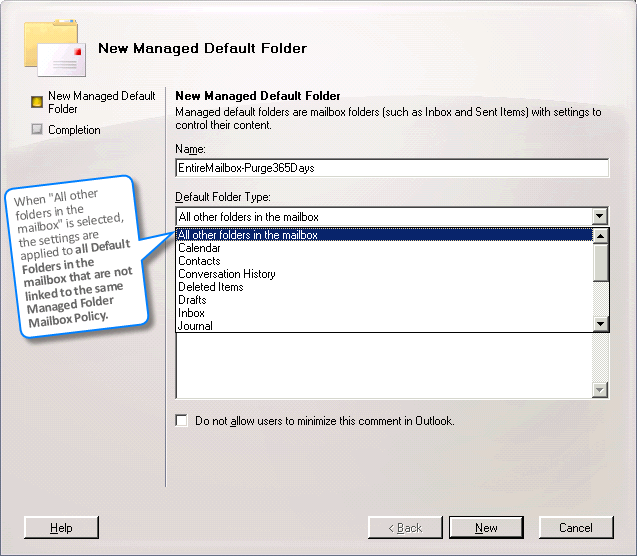
All other folders in the mailbox, and default folders
If the Entire Mailbox Managed Folder, or any other instance of a Managed Folder created using All other folders in the mailbox is used in a Managed Folder Mailbox Policy, it applies to the entire mailbox (including all Default Folders and any Custom Folders created by Exchange or by the mailbox user), except any default or custom Managed Folders included in the same Managed Folder Mailbox Policy.
Scenario 1: A policy that includes a Default Folder of type All other folders in the mailbox (including the pre-canned Entire Mailbox Default Folder) applied to a user, no other Default Folders are included in that policy. The policy applies to the entire mailbox, including all Default and Custom folders.
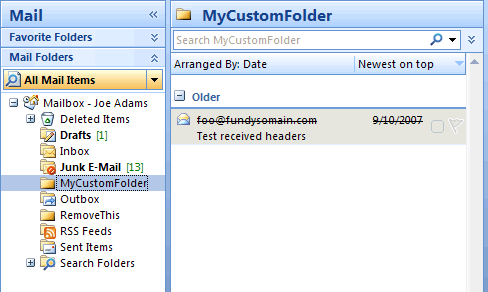
Figure 2: A Managed Folder Mailbox Policy applied to Entire Mailbox also impacts any custom folders created by the mailbox user that are not explicitly included in the policy.However, if you have restricted the message type to “E-mail”, the policy will only take action on email items in those folders.
Scenario 2: A policy that includes a Default Folder of type All other folders in the mailbox (including the pre-canned Entire Mailbox Default Folder) is applied to a user, policy also includes other Default Folders such as Deleted Items, Inbox, etc.
The result: The Managed Content Settings for the “entire mailbox” Default Folder applies to all Default and Custom Folders, but not to the ones you explicitly linked to the same policy. Create new Managed Content Settings for the new folder. Under message type, select “E-mail”.
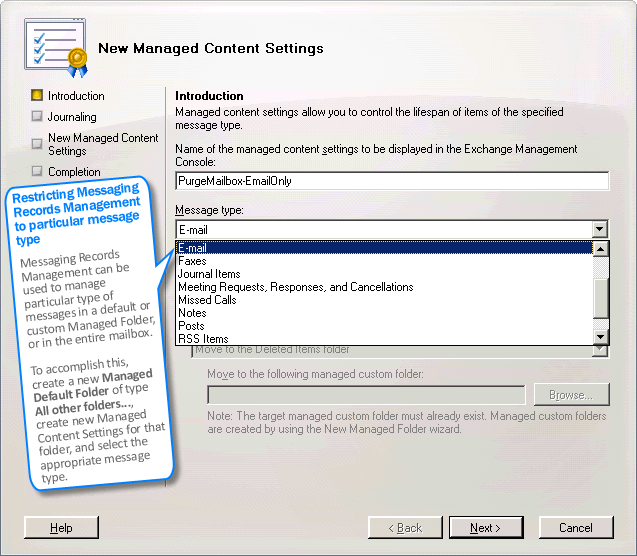
You cannot select multiple message types – the only choices are All Mailbox Content or a specific message type. If you want to apply settings for different message types, you must create additional Managed Content Settings for that Default Folder and select the message type you want. You can’t select more than one message type per Managed Content Settings.
 Add this new Managed Default Folder to an existing Managed Folder Mailbox Policy, or create a new policy.
 Apply the policy to appropriate users if not already applied. (Read previous post “Applying Managed Folder Policy to more than one user“)
 Ensure the Managed Folder Assistant is scheduled to run. (Read previous post “Exchange Server 2007: Why aren’t Managed Content Settngs applied?“)
[…] – Restricting Messaging Records Management to a particular message type […]