
Exchange Server 2003’s extensions for Active Directory Users & Computers console made hiding a Distribution Group’s membership a trivial task, accomplished by right-clicking a group, selecting Exchange Tasks and selecting Hide Membership.
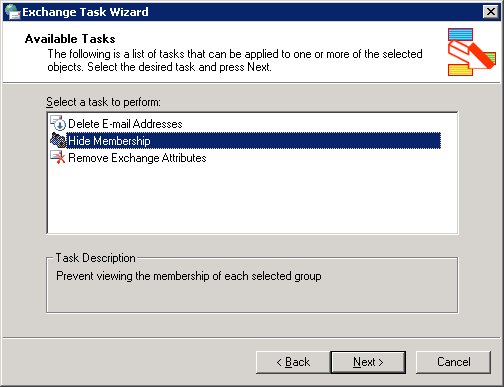
Figure 1: The Exchange Tasks wizard in ADUC provides an option to hide Distribution Group membership in Exchange Server 2003
As the task suggests, it hides the group’s membership in the Outlook Address Book/GAL. It also prevents users from clicking the + link that appears before a Distribution Group when composing a new message, and expanding the group so messages are sent individually to all members rather than the DG.
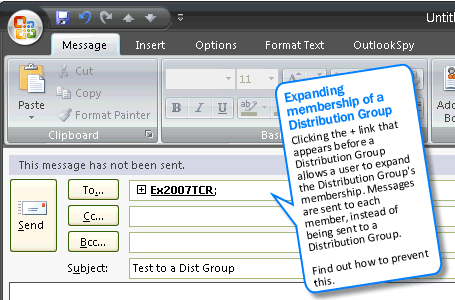
Figure 2: Distribution Groups that have their membership hidden cannot be expanded in Microsoft Outlook
What does Hide Membership do?
The Hide Membership task available from Exchange Tasks in ADUC denies Read Property permission for the Members attribute to the Everyone group. This also prevents Administrators trying to manage the group from seeing the group’s members.
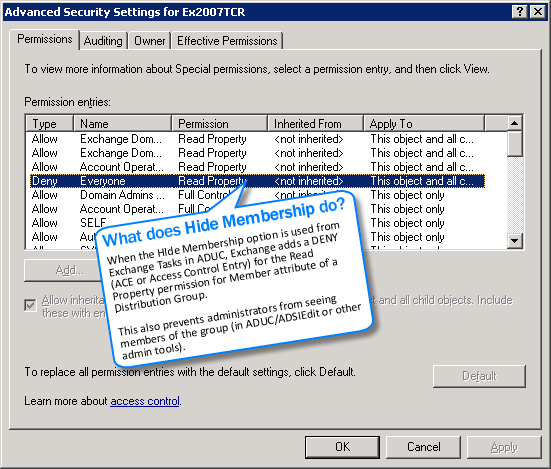
Figure 3: Hiding a Distribution Group makes changes to the Distribution Group’s ACL
Hiding Distribution Group membership in Exchange Server 2007
Hiding Distribution Group membership is not supported in Exchange Server 2007. There is no option to hide Distribution Group membership in the console, nor a single parameter you can flip using the shell. (Update 5/9/2012: See You Cannot Hide Distribution Group Membership in Exchange 2007 in Exchange 2007 documentation on TechNet).
Nevertheless, you can prevent users from expanding the group in Microsoft Outlook, and hide the group’s Member attribute so it’s not visible in the properties pages in Outlook or OWA. The caveat &mdas; it’s not a way to hide membership completely, as noted later in the post.
 Adding Deny ACE for the Members property
Use the following command to deny the ReadProperty permission for the Distribution Group’s Members property to a particular user or Security Group (Remember the security best practice – add users to Security Group -> assign permissions to Security Group?):
Add-ADPermission “Distribution Group Name” -user “User or Security Group Name” -Deny -AccessRights ReadProperty -Properties Member
Note, to simulate what Exchange Server 2003’s Hide Membership task does, you can use the Everyone group in the -users parameter. This hides membership from the EMC as well, but the shell can still show membership using the Get-DistributionGroupMember command.
Once the permission is added, clicking on the + link in Microsoft Outlook produces the following not-so-descriptive error message, and the user is prevented from expanding the Distribution Group.

Figure 4: With the Deny ACE in place, Outlook users get an error when trying to expand the Distribution Group. Click here to see a larger image
Additionally, membership of the group is not revealed in the group’s properties in the Address Book/GAL.
Adding Deny ACE using the GUI
If you’ve already used the shell to add the deny ACE, you can skip the following procedure and head to the next section.
For the console/GUI fans amongst us or those who simply haven’t developed an intimate relationship with the shell (hopefully the following will make you a convert… :), ADSIEdit is your friend. Fire it up:
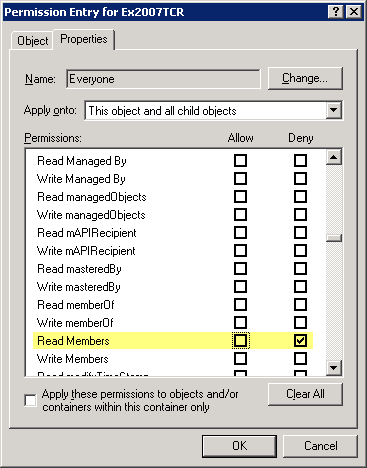
- Navigate to the Distribution Group’s properties
- Select the Security tab
- Click Add
- Select the user or group you want to deny permission to (you can use the Everyone group to simulate what Exchange Server 2003 does)
- Click OK
- Click Advanced (wait… ) to open Advanced Security Settings
- Select the Permissions tab
- Select the user or group if not already selected
- Click Edit to open the Permissions Entry properties for the selected user/group
- Select Properties tab
- Click on the “Deny” checkbox for the Read Members property so it is checked.
- Click OK to close the Permissions pages.
- Click OK to close the Advanced Security Settings pages
- Click OK to close the Properties dialog box
Inspecting any non-inherited permissions and removing the Deny ACE
To determine any modifications to the Active Directory permissions for the Members property:
Get-ADPermission “Distribution Group Name” | where {$_.Properties -like “member”} | fl
To remove the Deny permission on the Member property for a Distribution Group, use the Remove-ADPermission command:
Remove-ADPermission “Distribution Group Name” -user “User/Security Group Name” -Deny -AccessRights ReadProperty -Properties Member
 Prevent Delivery Reports from Distribution Group
Users can send a message to the Distribution Group with a Delivery Report requested, which can reveal the group membership.
To prevent a Delivery Report from being sent to the originator (consider this carefully, you may want senders to receive delivery reports if messages are not delivered to members of certain Distribution Groups. You can also enable delivery reports to the group Manager only.), use the following command:
Set-DistributionGroup “Distribution Group Name” -ReportToOriginatorEnabled $false
Once this is done, Exchange simply sends a Distributtion Group expanded/delivered to DG message in the Delivery Report, if one is requested, without revealing the group’s members.
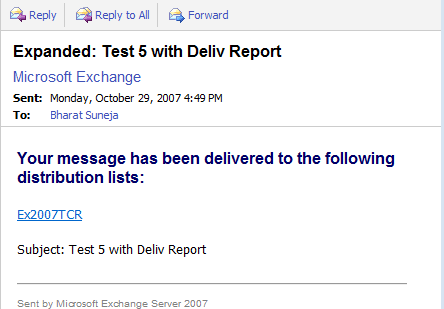
Figure 5: Preventing Delivery Reports to originator returns a “delivered to DG” message when Delivery Reports are requested
 Hiding group membership in OWA
Membership of the Distribution Group can be viewed in OWA (OWA 2007). As reader Bart points out, this is easily fixed by flipping the hideDLMembership attribute to TRUE. At first look, the attribute doesn’t seem to be exposed by the Exchange shell. You can use your LDAP/Active Directory tool of choice, including ADSIEdit, to modify it.
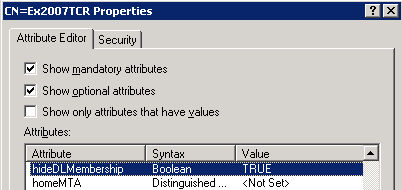
Figure 6: Flipping the Distribution Group’s hideDLMembership attribute to True in ADSIEdit
With the attribute set to true, group membership is no longer revealed.
Yes, this means this workarounds mentioned above can be used to:
- Hide Distribution Group membership from Outlook users
- Prevent Outlook users from expanding the Distribution Group when composing new messages
- Hide Distribution Group membership from OWA users
- Prevent Delivery Reports from revealing group membership
The caveat:
These workarounds succeed in hiding membership by examining the Distribution Group (or sending a message to it). This may meet your requirements for hiding group membership. However, users can examine the Member Of property page of a recipient in Outlook and see which groups he/she is a member of. Agreed, this is not a convenient way of discovering group membership, particularly if you have a large number of recipients.
Nevertheless, from a security standpoint, this does mean there’s no hiding of group membership.
Is there a way to create a custmom GAL that ignores msExchHideFromAddressLists attribute?
I am working with a compliance software that works with GAL and it cannot do anything with mailboxes hidden from it.
Is there a way to hide the membership in OWA as well?
Yes. In order to hide the membership in OWA, set the attribute hideDLMembership to TRUE.
@bart: Thanks much for pointing out the OWA issue— the post has been updated (and almost rewritten.. from "it's not possible to completely hide… " to "yes, it's possible… " :).
Cheers!
“Get-DistributionListMember” should be “get-distributionGroupMember” in EMC / Powershell.
Thanks for catching that! Corrected.
I’ve created certain contacts on my Exchange Server which i marked as hidden
from global address book but unfortunately clients like thunderbird/OE have
LDAP configured for adress book lookup which can see the hiddden addresses..is there a way to hide
it from both locations…early solution will be of great help
Thanks a lot I never know before that we can do that
what is the maximum number of DLs can a user be member of ?
Do we have any limitation set?
if so why and what will happen if the user is member of more than that limitation
@Shreekanth: Check out this post on the Exchange team blog:
Maximum number of members in a Distribution Group?
Hi Bharat,
Thanks for sharing. How can we hide member from dynamic distribution list? Fyi, we have only exch 2k7 and i've added recipient filter which has grayed out condition options.
If i use AD to add everyone under security for this Dynamic DL, i don't get Read members option under advance security setting + Apply to: This object only selected with grayed.
Unlike regular distribution groups, dynamic distribution groups don't have members per se – the "membership" is determined by the ldap/opath filter. Nothing to hide there.
Unless you base the membership of the Dynamic Distribution group on the MemberOfGroup attribute which points to a Security Group. You cannot expand or even do an export on the filter from EMC and get results when you set it up that way. All other filter results using other attributes, I think, are exportable.
@Gus: Yes, but that almost beats the purpose of a dynamic distribution group, doesn't it?
@Bharat Suneja
RE:
"Membership of the Distribution Group can be viewed in OWA (OWA 2007). As reader Bart points out, this is easily fixed by flipping the hideDLMembership attribute to TRUE. At first look, the attribute doesn't seem to be exposed by the Exchange shell. "
I took a second look at this (now we just need to combine the two scripts together):
## Nicholas Leader
## 01/14/2010
# Serverless bind to the domain, and define the root DN
$root = [adsi]""
$rootdn = $root.distinguishedName
#syntax at CLI "group"
$userinput = $args[0]
$groupobj = get-group $userinput
$groupdn = $groupobj.DistinguishedName
# Bind to Group object
$group = [adsi]"LDAP://$groupdn"
$group.put("hideDLMembership", "TRUE" )
$group.setinfo()
Complete DL membership hide script:
## Nicholas Leader
## 01/14/2010
#syntax at CLI: "group"
$userinput = $args[0]
# necessary to hide DL membership in Exchange 2007
Add-ADPermission $userinput -user "everyone" -deny -AccessRights ReadProperty -Properties Member
# Serverless bind to the domain, and define the root DN
$root = [adsi]""
$rootdn = $root.distinguishedName
$groupobj = get-group $userinput
$groupdn = $groupobj.DistinguishedName
# Bind to Group object
$group = [adsi]"LDAP://$groupdn"
# necessary to hide DLmembership on OWA
$group.put("hideDLMembership", "TRUE" )
$group.setinfo()
Please how we can apply these steps on exchange 2007, because there is differences between exch2003 and exch 2007.
please ASAP.
I think we can achieve this one from Exchange console(2010)
Go to that DL property–> Advanced–>Hide GP Exchange address lists
Tx,
Vivek
That simply hides the distribution group from Exchange address lists, including the Global Address List (GAL). As indicated in the post, there are other ways to access the Member property of groups.
shouldn’t the powershell script in step 1 read “memberS” at the end instead of simply “member”?
No – the property name is Member.
[…] http://exchangepedia.com/2007/11/how-to-hide-distribution-group-membership.html […]
[…] Exchangepedia | HOW TO: Hide … – Hiding Distribution Group membership in Exchange Server 2007. Hiding Distribution Group membership is not supported in Exchange Server 2007. There is no … […]
Hi Team, I just need a help to hide the DL groups member sin outlook, we have on-prem exchange but server does not exist and incorporated to exchange admin center in office 365.
On-prem we can only access the ADUC.
How can I hide my DL group members using the powershell script.
Like my DL Group is Manila Times Group then how can I write it in powershell to remove the permission to vies the members of that group?
Thanks for the help in Advance.