
Exchange Server 2007’s Managed Folders come in two flavors: 1) Managed Default Folders 2) Managed Custom Folders. Default folders are the ones created by default in user mailboxes, such as Inbox, Sent Items, and Deleted Items. Custom Folders are the result of a much-requested feature by Exchange folks over the years: Can I create a folder called “Project Blah” in all mailboxes?
Exchange setup creates a set of Managed Default Folders for each type of default folder e.g. Deleted Items. These are visible in Organization Configuration | Mailbox | Managed Default Folders tab, or by using the Get-ManagedFolder cmdlet.
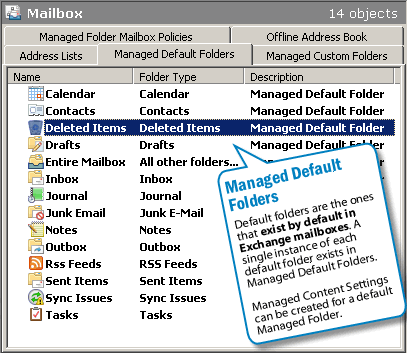
Figure 1: Exchange setup creates a set of managed default folders of each type.
To apply message retention settings for items in a managed folder, you must create Managed Content Settings for it. For example, you can create a Managed Content Setting to retain items in the Deleted Items folder for 30 days, and permanently delete items older than 30 days.
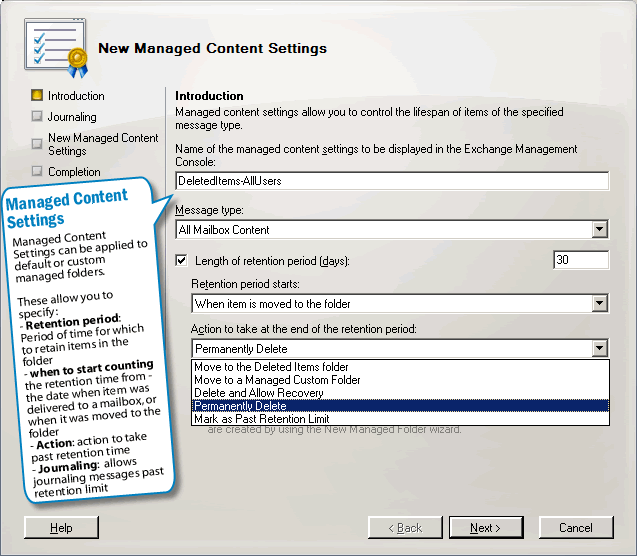
Figure 2: You can create additional Managed Default Folders of type Deleted Items.
Next, you want to create another setting for your executives with a higher retention period of 300 days for the Deleted Items folder. If you try to create another Managed Content Settings for the same Default Managed Folder, you get the following error.

Figure 3: You cannot create an additional Managed Content Settings for the same message class for the same folder.
Managed Folders and Managed Content Settings
If Exchange allows you to associate only one Managed Content Settings with one Managed Folder, I’ve often wondered, why not allow specifying content retention settings in the Properties of that Managed Folder? Why have a Managed Folder AND a Managed Content Settings for that folder as separate objects?
This is to allow different Managed Content Settings for different types of items in a Managed Folder. For example, for the Deleted Items folder, you can create a Managed Content Setting to permanently delete messages after 30 days, but retain other types of items such as faxes or Contacts for a little longer, let’s say 60 days.

Note: You cannot change the Message Type selected in Managed Content Settings after it is created. To select a different Message Type, you must delete the Managed Content Settings object and recreate it with the Message Type you want.
Create another Managed Default Folder
To create a new Managed Content Settings for a default folder, Deleted Items in this case, we’ll need to create another Managed Default Folder.
- In the Exchange console, select Organization Configuration | Mailbox | Managed Default Folders.
- In the Actions pane, click the New Managed Default Folder link.
- In the New Managed Default Folder page, enter a name for the new default folder instance.
Note, unlike Managed Custom Folders, default folders such as Deleted Items, Inbox, Sent Items, Drafts, etc. already exist in a mailbox. What we’re doing here is simply creating an instance or representation of a default folder as an object in Active Directory (where Exchange stores its configuration) so we can create one or more Managed Content Settings associated with it. The default older can then be added to a Managed Folder Mailbox Policy and the policy applied to mailboxes.
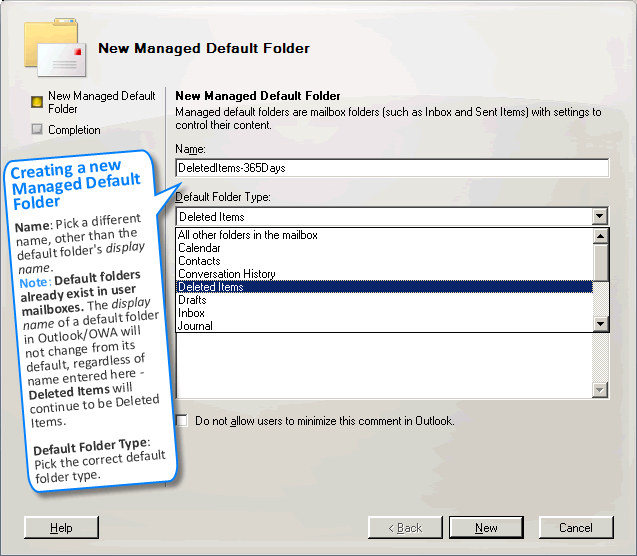
Figure 4: Creating a new Managed Default Folder of type Deleted Items. - Default Folder Type: Select the correct default folder type. For this example we select Deleted Items.
- Display the following comment when the folder is viewed in Outlook: [Optional] Type a comment in this box. The comment will be displayed in Outlook 2007 when the user selects this folder.
- On the Completion page, click New | click Finish.
Now you have another instance of the Deleted Items folder. You can create Managed Content Settings for it, and add it to a Managed Folder Mailbox Policy.
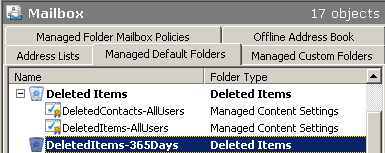
Figure 6: Another instance of the Deleted Items default folder.
For more details about applying Managed Folder Mailbox Policy, read previous post “Applying Managed Folder Policy to more than one user“.
is there a way to limit this to just the inbox folder and not its subfolders?
Yes – using the -BaseFolderOnly parameter in New/Set-ManagedFolder.
Great article. I really despise how Retention Policies work in 2007/2010. It was so much simpler and easier (IMO) to select what you want, for who you want, and have it applied in a Recipient Policy. It just made more sense to me that way.
It wouldn’t be bad if you could specify the retention period in the actual Managed Mailbox Policy rather than having the period set in the Managed folder settings. That way, I can create a policy for service account mailboxes, have it clean out after x days, and then simply pick ‘Entire Mailbox, Inbox, Deleted Items, etc’ from the standard managed folders.
Using your method, I get the flexibility I need for now…except I can only have one ‘Entire Mailbox’-based managed policy.
Using Recipient Policies (with Mailbox Manager settings) in Exchange 2003 was simpler, but the policies were not applied deterministically. Because they were based on the policy’s LDAP filter, the policy applied to a user could change based on the filter query.
Retention Policies in Exchange 2010 and Managed Folders in Exchange 2010/2007 are applied determenistically because theyr’e specified as user attributes. There’s no ambiguity about which policy is applied to a user.
Also note, you can in fact create additional Managed Default Folder(s) for ‘Entire Mailbox’ – as shown in this post. They just need to have a different names. For example, you can create a new Managed Default Folder with the name ‘Entire Mailbox – Execs’, select ‘All other folders’ as the folder type. Then create a Managed Content Settings for that folder and specify the retention settings. Similarly, you can create ‘Inbox – Execs’, ‘Deleted Items – Execs’, etc.
Finally, create a Managed Folder policy and add these new managed folders to it, and apply the policy to users.
I’m confused, do the execs see two deleted items folders? One called “Deleted Items” and another called “DeleteItems-365Days”? Do they have to delete their items by moving them to the right folder?
Thanks
No, the default folder names don’t change. What you’re seeing is simply the display name (the name for the Managed Default Folder object).
You can only add one Managed Default Folder of type Deleted Items (or any of the other default folders such as Inbox) to a Managed Folder Mailbox Poliy. But regardless of whether you add “DeleteItems-365Days” or “Deleted Items”, users who get the policy won’t have their default “Deleted Items” folder renamed.