
Scenario: You have a Managed Folder Mailbox Policy called Policy-DeletedItems90Days. The policy has Managed Content Settings to permanently delete items in the Deleted Items folder after 90 days.
You can easily apply this Managed Folder Mailbox Policy to a single user using the Exchange console, as shown in Figure 1.
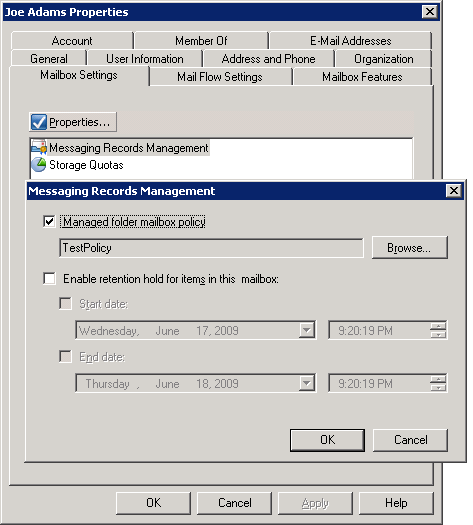
Figure 1: Applying a Managed Folder Mailbox Policy to a user using the Exchange Management Console
A Managed Folder Mailbox Policy can also be applied to a mailbox using the following shell command:
Set-Mailbox “Foo User” -ManagedFolderMailboxPolicy “Policy-DeletedItems90Days”
How do we apply this to more than one user? By using the Get-Mailbox command to fetch a bunch of mailboxes — either all mailboxes in the Organization, or all mailboxes in a particular Organizational Unit (OU), or all (mailbox-enabled) users who are members of a particular distribution group, or by filtering mailboxes based on other user parameters. The mailboxes returned can then be piped to the Set-Mailbox command.
To apply a Managed Folder Mailbox Policy to all (mailbox-enabled) users, we need to get a list of all mailboxes, and pipe it to the Set-Mailbox command:
Get-Mailbox -ResultSize unlimited | Set-Mailbox -ManagedFolderMailboxPolicy “Policy-DeletedItems90Days”
To apply the policy to all mailboxes in a particular OU, e.g. an OU called Sales, we restrict our Get-Mailbox query the Sales OU:
Get-Mailbox -OrganizationalUnit “Sales” -ResultSize unlimited | Set-Mailbox -ManagedFolderMailboxPolicy “Policy-DeletedItems90Days”
Apply a Managed Folder policy to members of a Distribution Group
When applying the policy to members of a Distribution Group, remember that Distribution Group members can include recipient types other than mailbox-enabled users (e.g. mail-enabled users, Contacts, other Distribution Groups, Public Folders, etc.) which can’t have a Managed Folder Mailbox Policy applied. To apply the policy to all mailbox users who are members of a Distribution Group called DL-Sales, we will need to get members of the Distribution Group using the Get-DistributionGroup command, filter the result to get only mailbox-enabled users, and pipe it to the Set-Mailbox command:
Get-DistributionGroupMember “DL-Sales” -ResultSize unlimited | where {$_.RecipientType -eq “UserMailbox”} | Set-Mailbox -ManagedFolderMailboxPolicy “Policy-DeletedItems90Days”
One logical question after the last example — can I do this with Security Groups (that are not mail-enabled) instead? You cannot get the group membership of a Security Group as easily as you can get the members of a Distribution Group. Unfortunately, Exchange Shell does not have any equivalent of the ADSI provider. (You can search the web for shell scripts to enumerate security group members – Bharat)
Avoid the confirmation prompts when applying a Managed Folder policy
When applying a Managed Folder Mailbox Policy, you run into 2 prompts. The first one is the default confirmation prompt produced by Set-Mailbox. This is cmdlet saying, “Hey, something changed! Are you sure you want to do this?”, and prompts you for a confirmation as shown below:
Confirm
Are you sure you want to perform this action?
Setting mailbox “exchangepedia.com/People/foo user1”.
[Y] Yes [A] Yes to All [N] No [L] No to All [S] Suspend [?] Help
(default is “Y”):
You can avoid it by simply using -Confirm:$false in the command.
Next, you will run into the confirmation prompt produced when applying a Managed Folder Mailbox Policy. This is the cmdlet realizing, “Hey, this one’s a serious change — you’re applying a MF policy! Are you really, really sure? And btw, it’d be a good idea to block legacy Outlook clients!”. The resulting prompt is shown below:
Confirm
When assigning a managed folder mailbox policy with managed custom folders to the mailbox “exchangepedia.com/People/foo user1”, Outlook clients older than Outlook 2007 do not have all available client features and clients older than Outlook 2003 SP2 are not supported. You may use the “Set-CASMailbox” task to enable client version blocking. Are you sure you want to assign a managed folder mailbox policy to this mailbox?
[Y] Yes [A] Yes to All [N] No [L] No to All [S] Suspend [?] Help
(default is “Y”):
To override this prompt, you’ll need to use the ManagedFolderMailboxPolicyAllowed switch. The command from the above example will thus look like this:
Get-Mailbox -ResultSize unlimited | Set-Mailbox -ManagedFolderMailboxPolicy “Policy-DeletedItems90Days” -ManagedFolderMailboxPolicyAllowed -Confirm:$false
A default Managed Folder policy for new users
A related frequently asked question — Can you have a default Managed Folder Mailbox Policy that’s applied to new mailboxes automatically? There’s no built-in way to specify a policy as the default policy for all users or new users at the time of account creation. However, you can use the Windows Scheduler to schedule a script or command to run on a schedule and apply the required policy to users. For example:
Get-Mailbox -ResultSize Unlimited -Filter {ManagedFolderMailboxPolicy -eq $null} | Set-Mailbox -ManagedFolderMailboxPolicy MyPolicyName -ManagedFolderMailboxPolicyAllowed -Confirm:$true
Why not use LDAP filters?
That’s fine, you say, but you really liked the Exchange 2003 way of applying a Recipient Policy, using LDAP filters. It allowed you to use pretty much any attribute you chose to filter on. In Exchange 2007, there’s no built-in way of using LDAP filters to apply a policy.
Having said that, it’s not such a great idea to apply message retention policies based on an LDAP filter, or at least not in a manner similar to Exchange 2003. For instance, if you’re using a particular attribute to filter on, such as department, or group membership, simply changing the attribute or group membership could change when and how a mailbox user’s messages are retained or purged. If you have multiple overlapping Recipient Policies, at times it’s difficult to determine which policy is applicable to a user.
Exchange 2007 offers a simpler and deterministic behavior— by making the policy a user attribute. A policy explicitly associated with a user allows you to instantly determine which policy applies, with no ambiguity. It’s also auditable, and reportable
The automation is provided by PowerShell. Of course, you can simulate Exchange 2003’s Recipient Policy behavior by using an OPATH filter with the Get-Mailbox cmdlet. (However, if you still need to use an LDAP filter, Nick Smith shows you how in Applying Managed Folder Mailbox Policies via LDAP Filters).
Let’s suppose we apply the mailbox policy to a OU. What happens when I create a new mailbox-user in that OU. Is the policy applied ot the new user? Should I apply the policy to the OU everytime I create a new mailbox-user there?
The policy is not applied to an OU – we’re simply getting all users in an OU or container and applying the policy them.
When you create new users in that OU (or move existing users to it), you will need to use the command again to apply it to them.
That’s a horrible step backwards. Here’s another question: can I create MULTIPLE policies for, say, the Inbox folder? I have a student population whose Inbox should be cleared out semi-regularly, and a Staff population whose Inbox should be cleared out more often. How would I accomplish this in 2007? It was trivial in 2003.
Trying to automate the task I can’t get rid of the yes, no , all prompt.
I’ve tried:-
$ConfirmPreference = “None”
get-mailbox | set-mailbox -Confirm:$False -ManagedFolderMailboxPolicy “Mailbox Policy”
But it always stops at a confirm prompt at the first mailbox that needs the policy applied?
Peter,
Seems like that’s fixed in SP1.
I’m in the same boat as tom davidson,
> That’s a horrible step backwards. Here’s another question:
> can I create MULTIPLE policies for, say, the Inbox folder?
>
> I have a student population whose Inbox should be cleared
> out semi-regularly, and a Staff population whose Inbox
> should be cleared out more often. How would I accomplish
> this in 2007? It was trivial in 2003.
Need separate policies for different groups of people, on the same folder.
I have not tested this yet, but it looks like it can be done according to Bharat Suneja. http://www.eggheadcafe.com/software/aspnet/30837517/mrm-in-exchange-2007-ques.aspx
Bharat Suneja [MVP]
28-Sep-07 12:55:12
Absolutely – as shown in this screenshot (multiple instances of Deleted
Items):
http://exchangepedia.com/blog/images/ManagedDefaultFolders-mi.jpg
—
Bharat Suneja
MVP – Exchange
http://www.zenprise.com
NEW blog location:
exchangepedia.com/blog
———————————————-
Hi Jon,
Look at the recent post: Managed Folders: How to apply different Managed Content Settings to Default Folders.
Tom and xavier:
With Exchange management no longer having AD integration, as well as the inability to create new user accounts from templates in the Exchange Management Console, we have actually moved to using interactive Powershell scripts for account creation.
We will be moving to actually taking input from a PHP forms page and just exec’ing the appropriate cmdlets that way, but for now we use Read-Host to gather info from the tech creating the account:
$firstname = Read-Host “Enter the new user’s first name”
$lastname = Read-Host “Enter the new user’s last name”
How you fetch the name of the template account to use totally depends on you, but I made use of the Powershell Community Extensions (http://www.codeplex.com/PowerShellCX) to search through AD for template accounts matching the need.
With this, it’s simple enough to add a something like:
Set-Mailbox “$firstname $lastname” -ManagedFolderMailboxPolicy [Policy Name]
If you want to get fancy, you can also grab the template account’s OU using something like:
$ou = $template.OrganizationalUnit
…where $template is your chosen template account’s mailbox.
From this you can set up a switch statement in your script that matches the user’s OU to the appropriate mailbox management policy:
switch ($ou)
{
[path to first ou name] { $mailboxpolicy = $mailboxpolicy1
[path to second ou name] { $mailboxpolicy = $mailboxpolicy2
etc.
}
…and then modify your set-mailbox command to use that:
Set-Mailbox “$firstname $lastname” -ManagedFolderMailboxPolicy $mailboxpolicy
To be honest, our user creation script is just shy of 300+ lines of Powershell code in order to suit our needs in a fairly complex hosted Exchange environment, but it can be done, and it’s a lot faster for us now to provision a new user than it was in Exchange 2003.
Is it more work than RUS and recipient policies? Upfront, yes.
Is it more flexible? Yes.
Which way is better? That answer depends on you…
Hugo, I want to implement something similar to what you are talking about. I am having some difficulty transferring the group membership of the template to the new user. Can you help please. Thanks.
Hi Nitin,
My apologies for the slow response; I have not been monitoring this thread.
The Exchange snap-in for Powershell unfortunately does not carry over group memberships. The Exchange Team’s answer for this is that the Exchange tools are concerned with Exchange attributes and not regular user attributes. Still, you could copy a template mailbox in Exchange 2003 ADUC and get group memberships, so not being able to do that with Exchange 2007 counts as a reduction in functionality in my mind.
Anyway, copying group memberships are a bit tricky, but do-able. Something like this ought to do:
##################################
# Get the template account’s group membership.
$filterid = ( Get-User $templaccn.name ).identity
$groups = Get-Group -filter { Members -eq $filterid }
# Run through all of the groups of which the template account is a member,
# and add the new account to them.
$groups | foreach-Object {
$groupdn = $_.DistinguishedName
$adobjgroup = [ADSI](“LDAP://$groupdn”)
$membercheck = ($adobjgroup.member | where-Object { $_ -eq $newuser})
if ( $membercheck.length -ge 1)
{
Write-Host $firstname $lastname “is already a member of “+$_.name+”. No group addition made. `n”
}
else
{
$adobjgroup.member.add(“$newuserdn”)
$adobjgroup.setinfo()
}
}
##################################
I have a full post on this on my tech blog at http://justanothersysadmin.wordpress.com/2008/01/19/modifying-group-memberships-with-powershell-part-1/. The post offers some more info and explanations of what’s being done. I also monitor it more actively for comments.
dear all
when i applied the policy for all users this masseage appear
When assigning a managed folder mailbox policy with managed custom folders to
the mailbox “PSCC.LOCAL/PSCC/Nursing Admin/NadminCE_Paeds”, Outlook clients
older than Outlook 2007 do not have all available client features and clients
older than Outlook 2003 SP2 are not supported. You may use the “Set-CASMailbox”
task to enable client version blocking. Are you sure you want to assign a
managed folder mailbox policy to this mailbox?
wat this mean
thanks
@Anonymous: Legacy Outlook clients don’t have a clue what Managed Folders are.
Although all the processing happens on the server (the Managed Folder Assistant runs and applies the settings, expires/purges messages, et al), the legacy Outlook clients will not prevent users from inadvertently deleting Managed Folders.
Other features, such as displaying different icons for Managed Folders, displaying Managed Folder comments, etc. are also not available in legacy clients.
In short, legacy clients simply don’t get the full MRM experience, and in fact pose a risk to your compliance efforts. To mitigate the risk, you can block legacy Outlook clients from connecting to Exchange 2007.
I am trying to findout for a syntax which will show the mailboxes on the exchange 2007 server have not been applied with managed folder policy. Can anyone shed some light please? Cheers
@Anonymous from Jan 14:
The syntax to get mailboxes which do not have a Managed Folder Mailbox Policy:
Get-Mailbox -Filter {ManagedFolderMailboxPolicy -eq $null} -Resultsize unlimited
Perfect! In the meantime I also found that you can use EMC to export a user’s list with policy details. Cheers!
is there any command for particluer users can taken one by one from text file and can apply purge policy.
@UNISYS: You’ll need to use import-csv cmdlet to import the list of users, and iterate through each user using For-Each.
Very helpful. Thank you!
For anyone migrating servers to Exchange 2007, I think the MRM retention counter resets on the default folders. I was pulling my hair out on why the 30 day delete was not working on my Deleted Items and Junk mail, but all seems OK now.
Hi..how can i find out or run a report to find out the list of user didnt get the policy applied?
To do this, in powershell run the command:
Get-Mailbox -Filter {ManagedFolderMailboxPolicy -eq $null} -Resultsize unlimited | select DisplayName,Alias,Server,Database | export-csv "c:\myfolder\NoMFPolicy.csv"
NB: Can use whatever fields you would like to report in the 'select' section.
[…] For more details about applying Managed Folder Mailbox Policy, read previous post “Applying Managed Folder Policy to more than one user“. […]
i am planning to implement MRM on E2K7 box and will be creating multiple default managed folders with multiple managed folder mailbox policy. now i want to apply different policy to different users using script. My main concern is how can i apply policy to no. of mailboxes using Custom Attribute.
Is this possible.
By filtering mailboxes using the custom attribute(s) 1-15, which are part of filterable properties (aka.ms/filterableproperties). Get-Mailbox -Filter {customattribute15 -eq “my value”} | Set-Mailbox -ManagedFolderMailboxPolicy “my policy”
Hi, thanks all for the great information!
I need to remove a managed folder mailbox policy from all users in an OU. I cannot seem to find out how to do this.
Any help would be great!
Thanks…
I have a workaround for my lack of knowledge. I created a NULL policy with no deletion rules and have applied it to the OU I was trying to remove the current policy from.
Should work…
[…] Applying Managed Folder Policy to more than one user | Exchangepedia Like this:LikeBe the first to like this post. […]
Bharat,
Great post as usual! Thanks for sharing
I have a question. I need to apply a managed folder policy as follow:
1. Managers OU: Deleted items retention will be for 6 months
2. The rest of users in the Organization Deleted items retention will be for 1 month
How can I do to run your script and exclude the Managers OU so they don’t get affected by the 1 month retention policy I need to apply to the rest of the Organization?
I know I can apply the managed folder policy to individual OUs as you explained but we have many OUs so my idea is to apply the 6 moths policy to the entire organization excluding the managers OU.
I found a script here: http://www.expta.com/2010/07/how-to-apply-default-managed-folder.html
I’m sure the script shown in the second link above can be modified to accomplish what I need but scripting is not necessarily my best skill
Any feedback would be greatly appreciated
Thanks in advance!
Thanks for the feedback!
What you can do is use a recipient filter – either based on a common attribute like title or department, or you can easily populate one of the custom attributes for all users in the Managers OU (see Understanding Custom Attributes http://technet.microsoft.com/en-us/library/ee423541.aspx) and then use that in your custom filter. Get-Mailbox -Filter {CustomAttribute1 -ne “your custom attribute value”} | Set-Mailbox -ManagedFolderMailboxPolicy “Your Policy”
Awesone!
Thanks so much for your prompt response. I’m sure this will help a lot of people out there dealing with this common scenario.
Please keep up the great job you are doing and thanks so much for sharing your great knowledge with the rest of the Exchange comunity
Best Regards,
FT